Made with MiniMax H3
Video preview
A preview created with MiniMax H3 from a start image. Use the controls to play it with sound.

 MiniMax H3
Create a video from a text prompt or a starting image. Choose your duration, frame, and resolution, then review your settings in the Bezio video studio.
Made with MiniMax H3
A preview created with MiniMax H3 from a start image. Use the controls to play it with sound.
Input → Output
See how a starting image and a prompt can shape a product reveal, a cinematic setting, or a quiet portrait.
An ivory ceramic bottle comes to life in soft morning light.
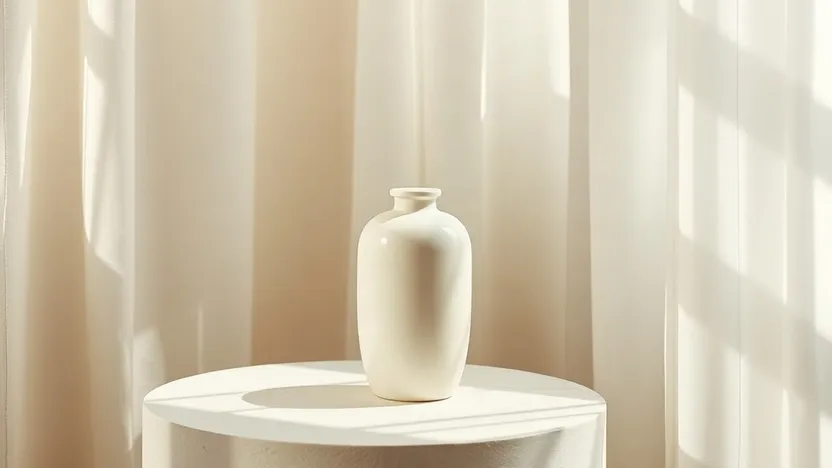
Prompt
The camera slowly orbits the ivory ceramic perfume bottle on its limestone pedestal. A sheer curtain stirs gently in the morning light. Keep the bottle and composition consistent, realistic product film, one continuous shot.
A rain-soaked coastal station becomes a cinematic scene.
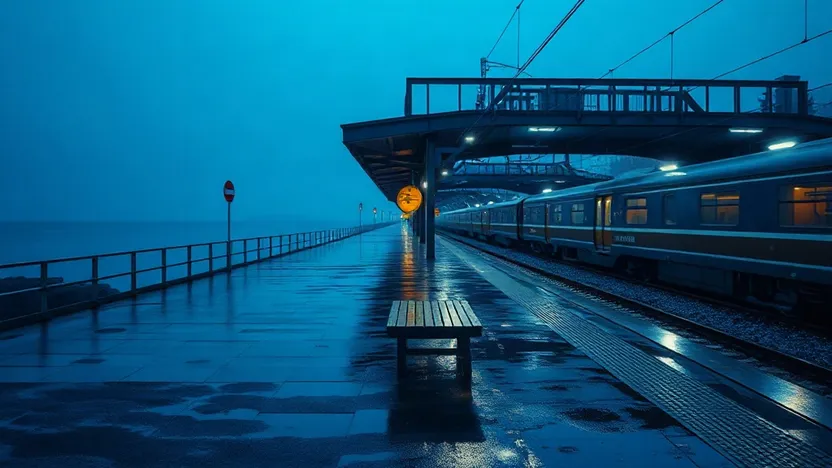
Prompt
The camera tracks slowly past the empty bench along the rain-wet platform toward a train arriving in the distance. Rain falls softly, reflections shimmer, quiet coastal blue hour, one continuous cinematic shot.
A window-lit portrait becomes a quiet moving moment.
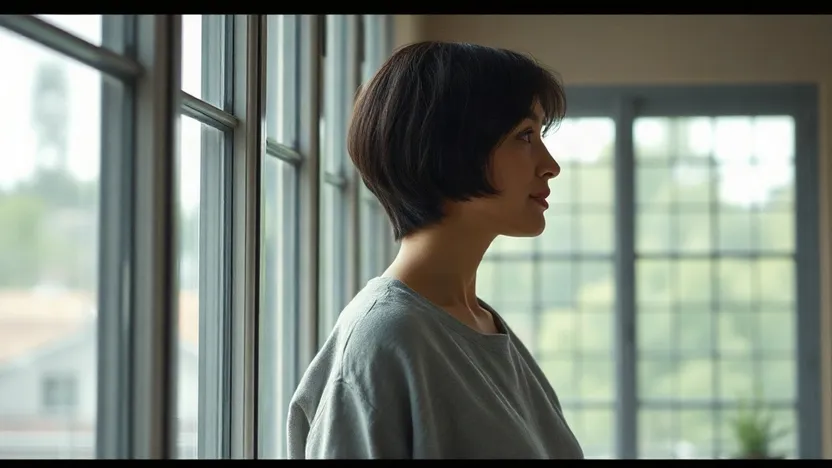
Prompt
The woman gently turns her gaze toward the window while a soft breeze moves a few strands of hair. The camera stays still, preserve her appearance and the soft natural lighting, one continuous shot.
Features
Describe a scene from scratch or upload one start image in the video studio. Add a prompt to direct the subject, action, and camera movement. This clip starts from an image of a paper boat.
Choose 480p, 768p, 2K, or 4K in Bezio. Pick a resolution suited to your shot and review the credit quote before generating. This product clip was generated at 480p.
Create clips from 5 to 15 seconds. Text-to-video offers six aspect ratios; image-to-video follows the uploaded start image. This landscape clip uses a start image.
Compare
Compare the controls currently available in Bezio to find the right fit for your next scene.
| Creative need | MiniMax H3 |   Kling 4.0 Kling 4.0 |   Seedance 2.5 Seedance 2.5 |
|---|---|---|---|
| Clip duration | 5–15 seconds | 3–30 seconds | 4–30 seconds |
| Resolution in Bezio | 480p, 768p, 2K, or 4K | 720p or 1080p | 480p or 720p |
| Start with | A prompt or a start image | A prompt, plus an optional start and end frame | A prompt or a start image |
| Extra controls | Six text-to-video aspect ratios; optional seed | Four text-to-video aspect ratios; optional end frame | Auto or six text-to-video aspect ratios; audio toggle |
| Consider it for | A shorter clip with resolution and seed options | A longer shot with a defined opening and ending | A longer clip with an audio control in the form |
Bezio form settings checked October 28, 2026. Model capabilities may differ from the controls offered here. Learn more from MiniMax, Kling AI, and ByteDance Seed.
Use Cases
Explore ideas for product storytelling, cinematic scenes, and image animation.
Product video
Describe lighting, materials, and a camera move to develop a short product-film concept for a launch or social post.
Cinematic scenes
Turn a written scene into an atmospheric establishing shot, with a clear subject, setting, and deliberate camera direction.
Image animation
Start with a still image and describe subtle movement to explore a new moment from an existing composition.
Step by step
From your first prompt to a finished video.
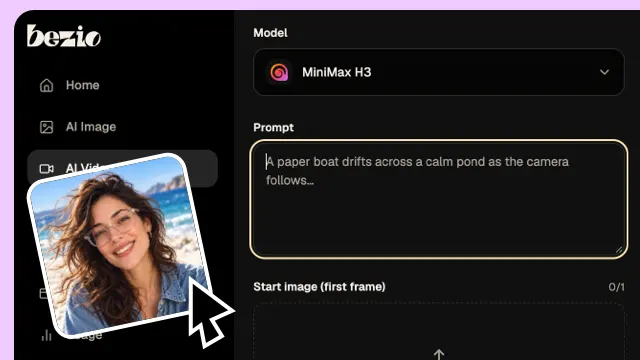
Write the subject, setting, action, and camera movement. Or add a start image in the video studio to guide the opening frame.
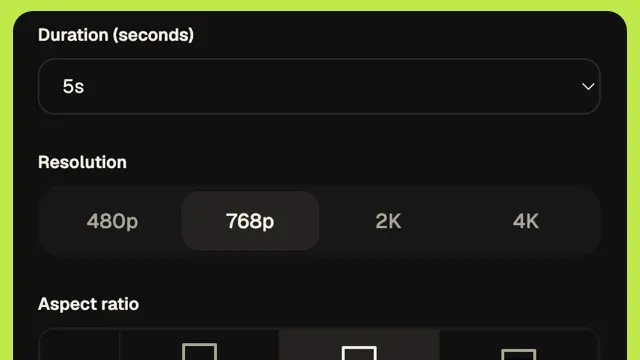
Choose duration and resolution. For text-to-video, select an aspect ratio; image-to-video follows the start image.
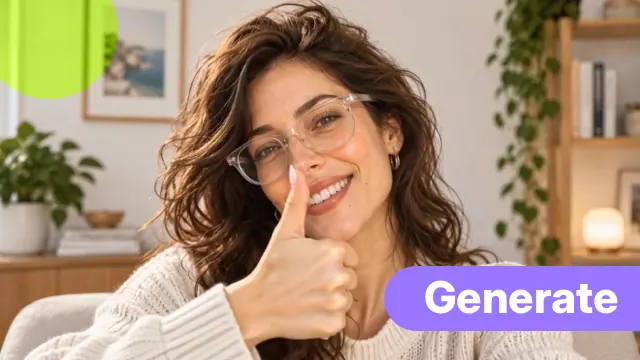
Open your settings in the Bezio video studio, add an optional seed, check the credit quote, and start your generation.
Questions, answered
MiniMax H3 is a video generation model from MiniMax. In Bezio, you can create a video from a text prompt or animate a start image.
In Bezio's current MiniMax H3 workflow, choose a duration from 5 to 15 seconds.
Yes. Open the video studio, select MiniMax H3, and upload one start image. Describe the action you want in your prompt.
Bezio offers 480p, 768p, 2K, and 4K. Text-to-video supports 21:9, 16:9, 4:3, 1:1, 3:4, and 9:16. Image-to-video follows the uploaded start image's frame.
Yes. The video studio has an optional seed field. Leave it empty for a random seed or enter one when you want to repeat a setting; the same seed does not guarantee identical results.
No. This page carries your prompt and settings into the Bezio video studio. You can review or change them and see the credit quote before starting a generation.
Start with the subject and setting, then describe the action, camera movement, lighting, and mood. Keep the direction clear and suited to the length of your shot.