Made with Wan 3.0
Video preview
A preview clip created with Wan 3.0. Use the controls to play it with sound.

 Wan 3.0
Turn a prompt or starting image into a video with Wan 3.0. Choose the length, framing, resolution, and generated audio, then review your settings in the Bezio video studio.
Made with Wan 3.0
A preview clip created with Wan 3.0. Use the controls to play it with sound.
Input → Output
Each video below uses the single opening image and exact prompt shown beside it.
Start with a designed frame and direct the motion around it.
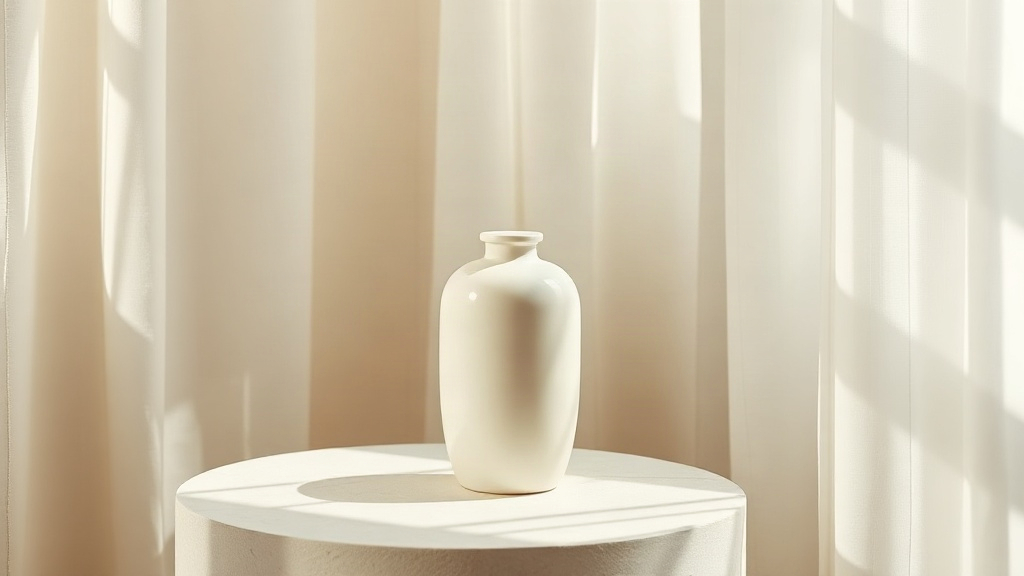
Prompt
The supplied still is the exact opening frame: an unbranded ivory ceramic vase on a sunlit pedestal. Slowly orbit clockwise around the vase while a soft breeze moves the sheer curtains and narrow afternoon sunbeams shift across the wall. Preserve the vase shape, warm minimal room, and clean composition. Natural room ambience only; no speech, text, logo, or watermark.
Use an opening scene to guide the camera, atmosphere, and action.
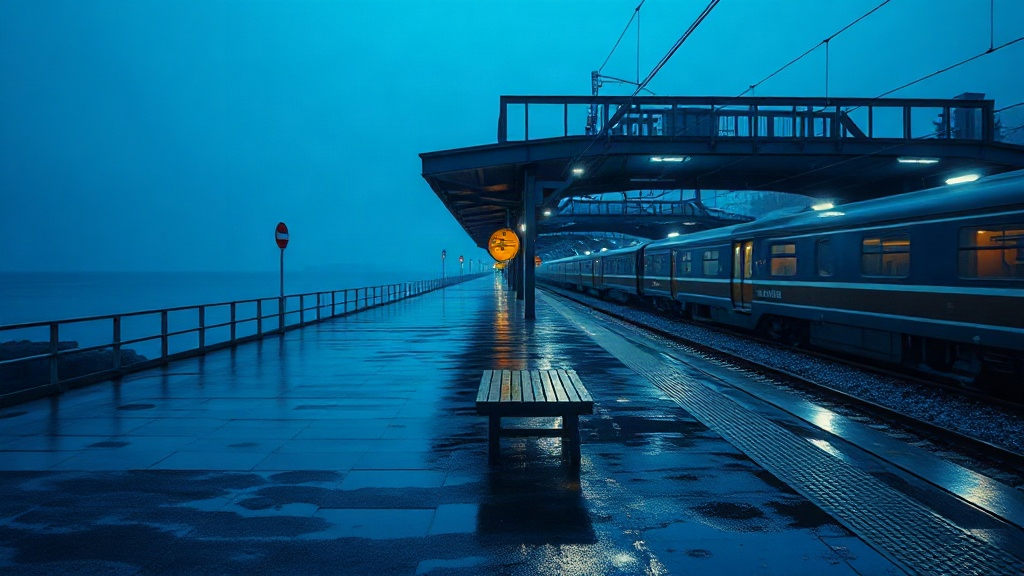
Prompt
Use the supplied blue-hour railway platform as the opening frame. Rain falls steadily; the parked train begins to roll slowly to the right as the camera pushes toward the empty bench. Preserve the station architecture, blue palette, and wet reflections. Subtle train and rain ambience, no people, no captions, no watermark.
Keep the subject anchored to a source image while directing a small gesture.
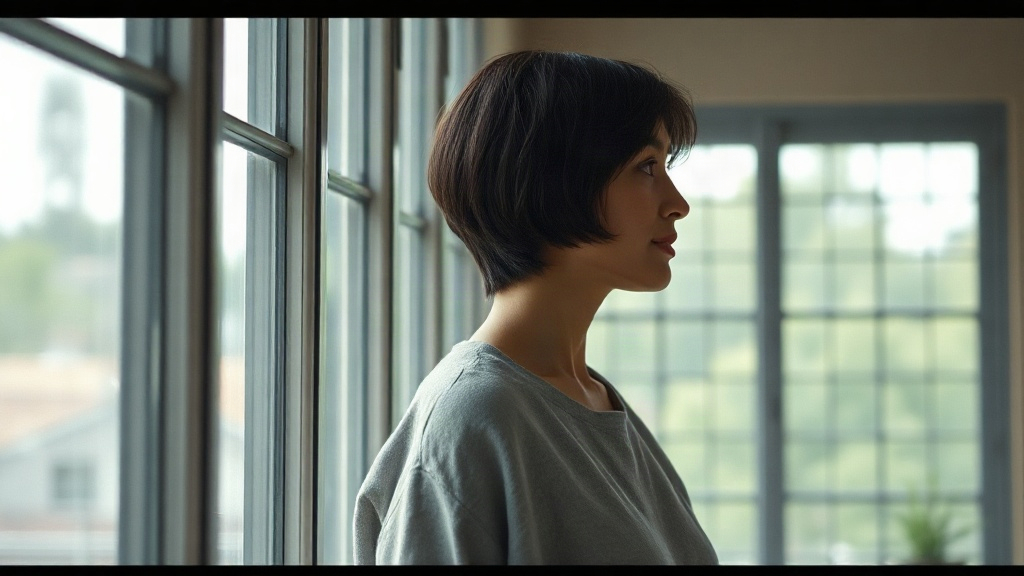
Prompt
Use the supplied portrait as the exact opening frame. The woman turns gently toward the window and smiles faintly as daylight shifts across her face; the camera makes a subtle push-in. Keep her identity, short dark hair, gray top, and interior consistent. Quiet interior ambience, no dialogue, no captions, no watermark.
Features
Describe the subject, action, and camera move in one prompt. Wan 3.0 can turn that direction into a short moving scene; specific motion cues help keep the shot focused.
In Bezio, choose 2–30 seconds, 480p, 720p, or 1080p, and a supported aspect ratio. A short shot can develop a single action; longer clips leave room for a sequence.
Turn generated audio on or off in the studio. Describe useful sounds in the prompt, such as rain, footsteps, or a cafe ambience, so the scene has a clear sonic direction.
Compare
Compare the controls available in Bezio across three video models to find a fit for your next scene.
| Creative need | Wan 3.0 |   Kling 4.0 |   MiniMax H3 |
|---|---|---|---|
| Clip duration in Bezio | 2–30 seconds | 3–30 seconds | 5–15 seconds |
| Resolution in Bezio | 480p, 720p, or 1080p | 720p or 1080p | 480p, 768p, 2K, or 4K |
| Start with | A prompt or one start image | A prompt, plus optional start and end frames | A prompt or a start image |
| Frame options | Adaptive or five aspect ratios | Four aspect ratios | Six aspect ratios |
| Audio control | Generated audio switch | No audio switch in the current form | No audio switch in the current form |
| Consider it for | Directed scenes with flexible length and generated sound | A shot with a defined opening and ending | Short clips when higher output tiers matter |
These rows describe Bezio's current controls, checked November 3, 2026. Provider capabilities may be broader. See the official pages for Alibaba Wan 3.0, Kling AI, and MiniMax.
Use Cases
Explore product reveals, story scenes, and vertical creator concepts made with Wan 3.0.
Product video
Use a precise camera move and lighting direction to create a compact product reveal for a concept, listing, or campaign draft.
Story scene
Write a short action with a place, character, and camera path to explore a scene before a larger production.
Creator video
Choose a vertical frame and describe a simple, readable action for a creator-style video or social concept.
Step by step
From your first prompt to a finished video.
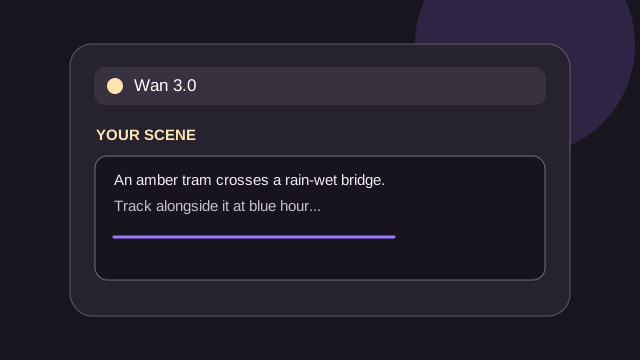
Write the subject, action, camera movement, lighting, and sound. You can begin with text alone or add a start image in the studio.
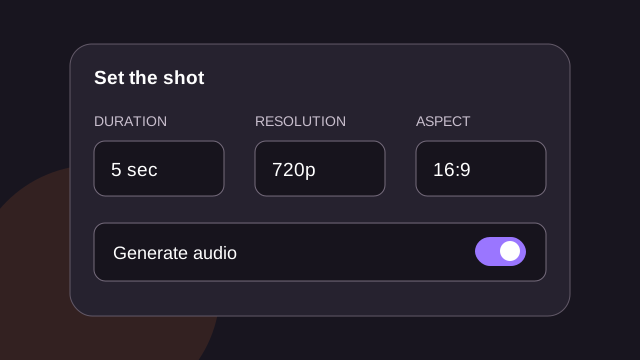
Choose duration, resolution, aspect ratio, and whether to generate audio. The studio also offers an optional seed.
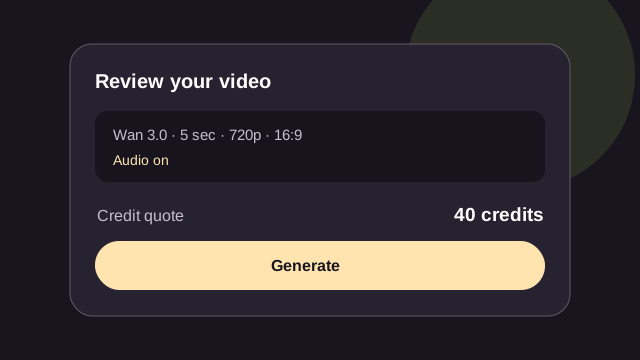
Open the Bezio video studio, check your settings and credit quote, then start the generation when you are ready.
Questions, answered
Wan 3.0 is Alibaba's AI video model. In Bezio, you can make a video from a text prompt or a single starting image.
Choose a duration from 2 to 30 seconds in the current Bezio video studio. The credit quote changes with your length and resolution.
Yes. Select image-to-video in the Bezio studio and upload one image as the opening frame. Describe how the scene should move in your prompt.
Bezio currently offers 480p, 720p, and 1080p. You can choose Adaptive, 16:9, 4:3, 1:1, 3:4, or 9:16.
Yes. The current Bezio form has a Generate audio switch. Describe the sound you want in your prompt and review the setting before starting.
The current Bezio Wan 3.0 workflow supports a text prompt or one start image. It does not expose the provider's broader reference workflow or an end-frame control.
No. This page sends your prompt and settings to the Bezio video studio. There you can review the credit quote and make changes before starting generation.
Start with the subject and setting, then add one clear action, camera movement, lighting, and sound. For longer scenes, describe the sequence of events in order.