Made with Kling 4.0

 Kling 4.0
 AI Video Generator
Create a video from a text prompt or a starting image. Choose your duration, frame, and resolution, then review your settings in the Bezio video studio.
- Text to video
- Image to video
- 3–30 seconds
- 720p or 1080p
- Start & end frames
Input → Output
Made with Kling 4.0
Explore how a starting image and a prompt can shape a product reveal, an expressive portrait, or an atmospheric scene.
Bring a Product Image to Life
Turn a carefully composed still into a short product reveal.
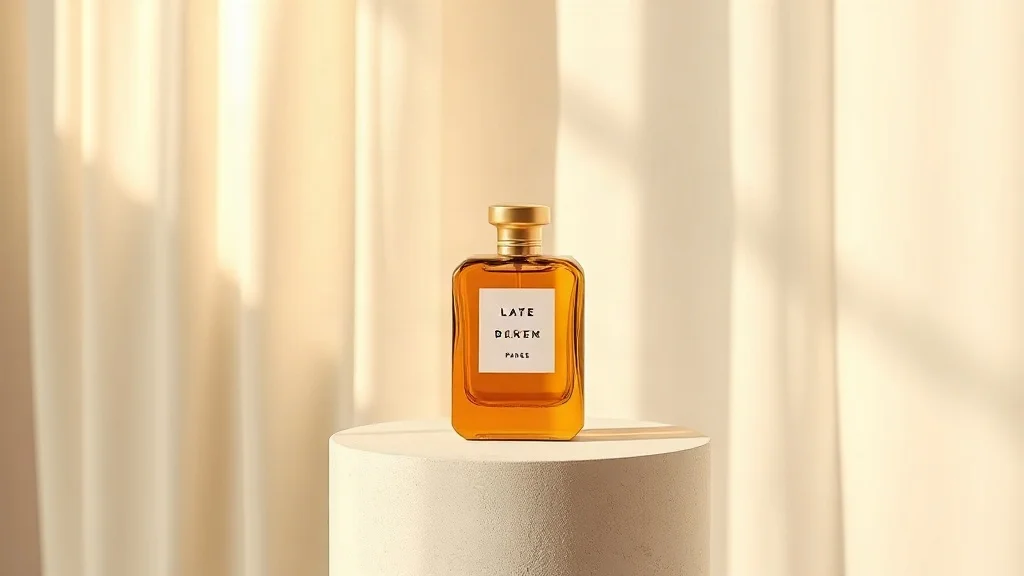
Prompt
The camera slowly arcs around the amber glass bottle on the limestone pedestal. A sheer curtain moves in the soft morning light while the bottle remains still. Realistic material and reflections, a continuous cinematic product shot.
Add Motion to a Portrait
Direct an expressive moment from one opening frame.
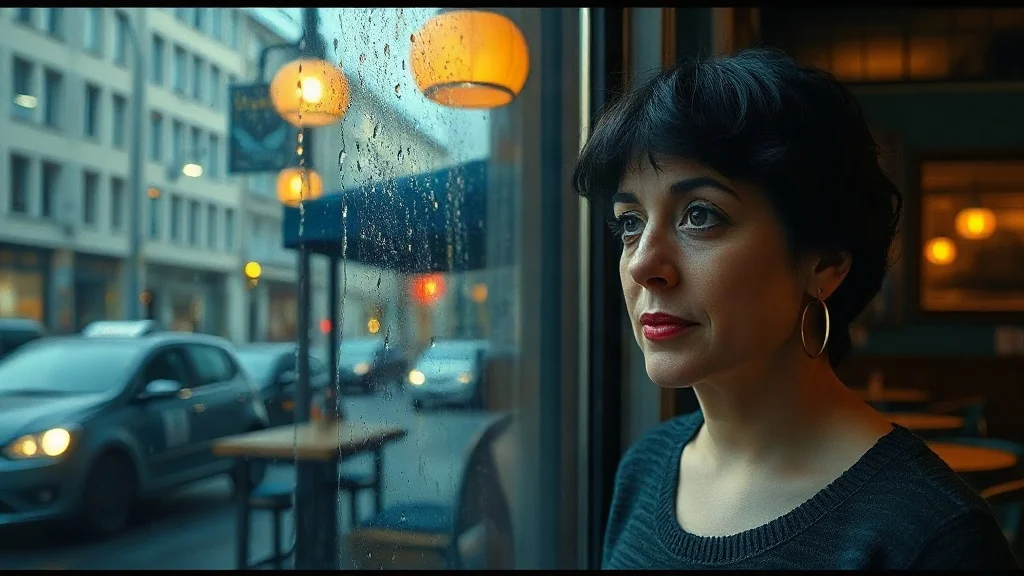
Prompt
The woman turns slowly towards the rain-streaked window and smiles subtly. The camera makes a gentle push in as warm interior reflections shimmer. Preserve her face, clothing and the cafe setting, one continuous shot.
Animate a Cinematic Landscape
Let the camera and environment move from a single frame.

Prompt
The red paper boat drifts forward over gentle ripples as raindrops land in the canal. The camera follows closely at water level toward the stone bridge. Preserve the red boat, realistic reflections, one continuous shot.
Features
More features of Kling 4.0
Direct Subject Motion
Describe an action and camera direction to shape a moment. This example was generated from a text prompt; you can also animate a start image in the studio.
Direct the Camera
Describe the subject, action, lighting, and camera movement in a prompt to shape the shot. This example was generated from text at 720p.
Choose Your Frame and Duration
Choose 3–30 seconds and 720p or 1080p. Text-to-video offers 16:9, 9:16, 1:1, and 21:9; image-to-video follows the start frame.
Compare
Kling 4.0 vs MiniMax H3 vs Seedance 2.5
Compare the controls currently available in Bezio to find the right fit for your next scene.
| Creative need | Kling 4.0 |   MiniMax H3 |   Seedance 2.5 |
|---|---|---|---|
| Clip duration | 3–30 seconds | 5–15 seconds | 4–30 seconds |
| Resolution in Bezio | 720p or 1080p | 480p, 768p, 2K, or 4K | 480p or 720p |
| Start with | A prompt, plus an optional start and end frame | A prompt or a start image | A prompt or a start image |
| Extra controls | Four text-to-video aspect ratios; optional end frame | Six text-to-video aspect ratios; optional seed | Auto or six text-to-video aspect ratios; audio toggle |
| Consider it for | A longer shot with a defined opening and ending | A shorter clip with resolution and seed options | A longer clip with an audio control in the form |
Bezio form settings checked November 10, 2026. Model capabilities may differ from the controls offered here. Learn more from MiniMax, Kling AI, and ByteDance Seed.
Use Cases
Three ways to create with Kling 4.0
Explore ideas for product storytelling, cinematic scenes, and creator videos.
Product video
Turn product details into a polished reveal
Describe light, texture, and camera movement to develop a short product film for a launch or social campaign.
Cinematic scenes
Build an atmospheric establishing shot
Set a location, time of day, and camera path to explore a cinematic scene from a written brief.
Creator stories
Create a moment for a social story
Describe a subject and a simple action to create a short scene for a creator-led concept or storyboard.
Who it is for
Typical Industry Scenarios
It supports early visual exploration across productions and campaigns. These images illustrate possible scenarios; review actual generated clips before production or publication.
- 01
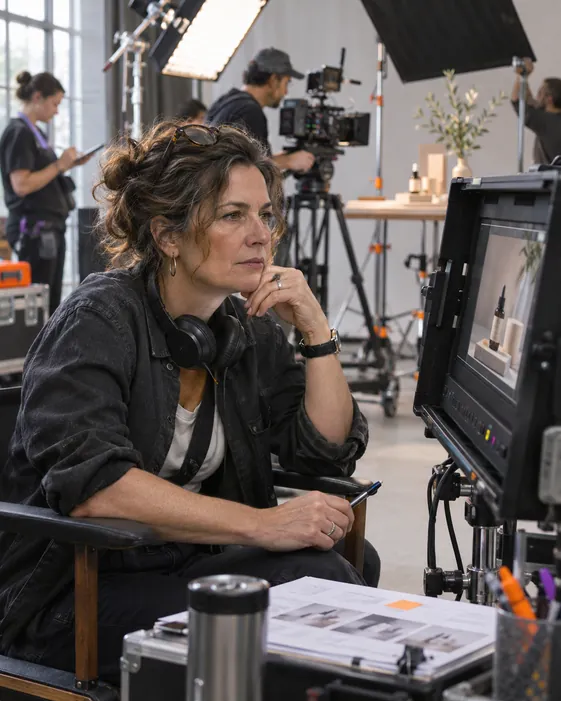
At work 
Concept frame Commercial directors and production companies
Explore product reveals, camera moves, and alternate shot directions before a full shoot. Use a start image and optional end frame to plan the visual arc, then review product details and production feasibility with the crew.
- 02

At work 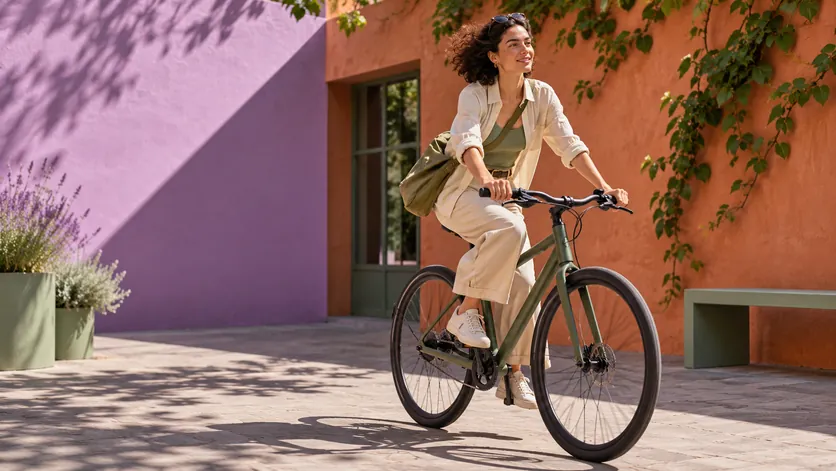
Concept frame Creative agencies and brand strategists
Make campaign directions concrete with draft scenes and motion ideas for pitches. Compare art direction, locations, and framing, then refine the chosen concept against approved brand assets and claims.
- 03
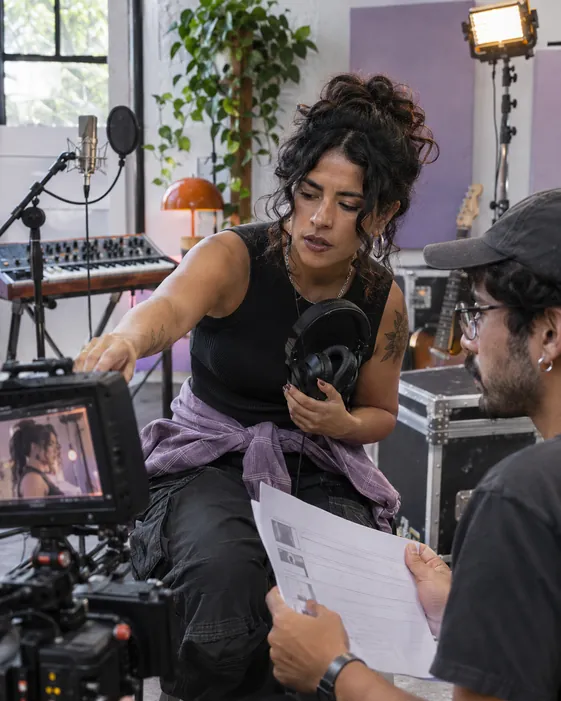
At work 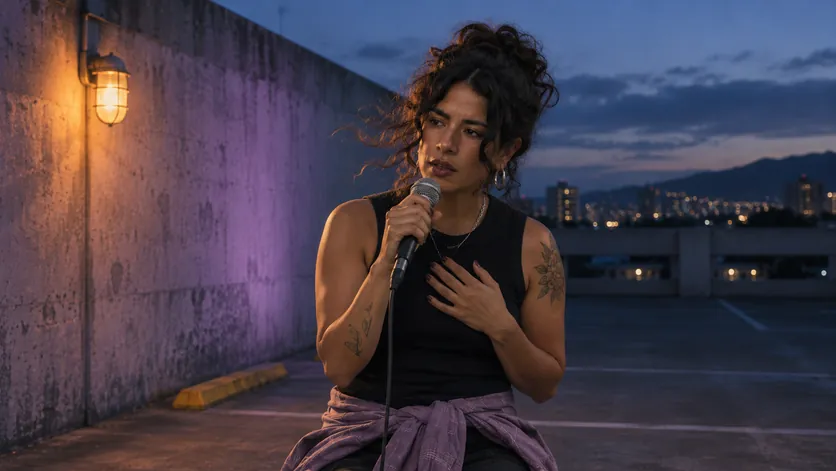
Concept frame Music-video directors and independent musicians
Develop performance backdrops, visual motifs, and short teaser shots around a song with a small crew. Review the artist's likeness and visual continuity, then sync the final edit to the music in an editor.
Step by step
How to Use Kling 4.0 to Make AI Videos
From your first prompt to a finished video.
- 01
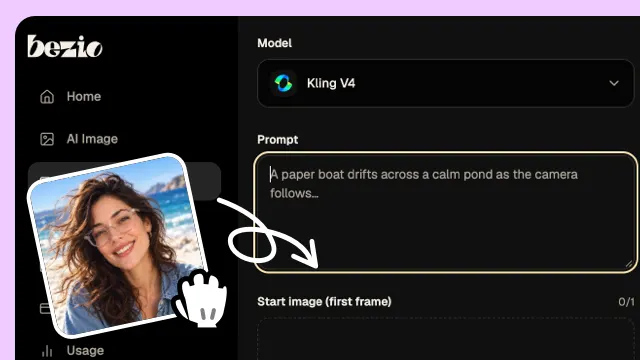
Describe your scene
Write the subject, action, setting, and camera movement. Add a start image in the studio to guide the opening frame.
- 02
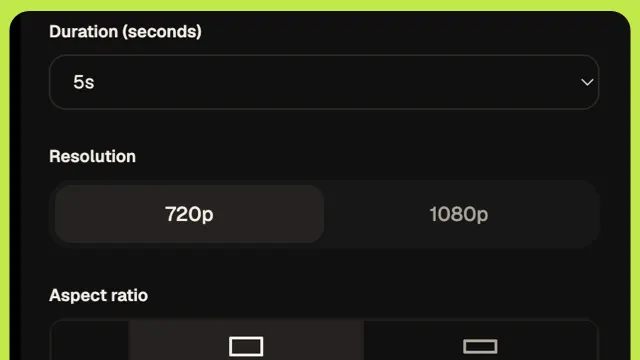
Set the shot
Choose duration and resolution. Select a text-to-video aspect ratio, or upload a start and optional end frame in the studio.
- 03
Review, then generate
Open the video studio, check your settings and credit quote, and start your Kling 4.0 generation.
Questions, answered
Kling 4.0 FAQ.
What is Kling 4.0?
Kling 4.0 is a video generation model from Kling AI. In Bezio, you can create video from text or animate a start image.
How long can a Kling 4.0 video be?
Bezio's current Kling 4.0 workflow offers durations from 3 to 30 seconds.
Can I use a start and end image?
Yes. In the video studio, upload a start image and optionally an end image to guide the opening and final frames.
Which resolutions and aspect ratios are available?
Choose 720p or 1080p. Text-to-video offers 16:9, 9:16, 1:1, and 21:9; image-to-video follows the start image's frame.
Does clicking Generate charge credits immediately?
No. This page carries your prompt and settings into the video studio. Review or change them and check the credit quote before starting a generation.
How do I write a Kling 4.0 prompt?
Describe the subject, setting and action, then add a camera direction and lighting. For image-to-video, explain what should move while preserving the details that matter.