Frame the shot. Time the cut.
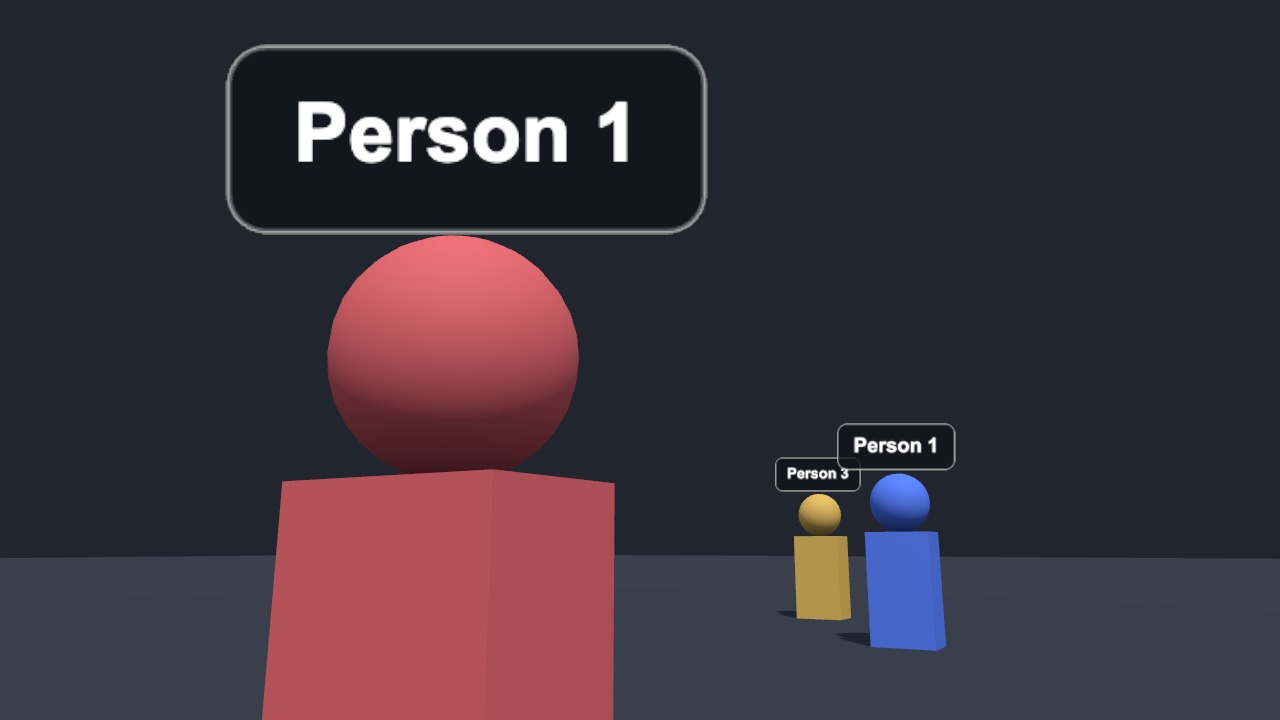
Use Camera View to see what the audience will see. Set the aspect ratio and field of view, then cut from a wide setup to a close-up on the timeline.
Free AI Previs Tools
Stage your cast, choreograph the action, and set the camera in 3D. Use the shot you blocked as a visual reference for AI video generation.
Open 3D Blockingcast & timing
Drag color-coded mannequins onto the stage. Keyframe where they stand, which way they face, and when they appear. Scrub the timeline to check entrances, exits, and the distance between performers.
Use Camera View to see what the audience will see. Set the aspect ratio and field of view, then cut from a wide setup to a close-up on the timeline.
Record a move by dragging the camera. Refine the path with Bézier handles, retime its anchor points, and keyframe the Aim Point to guide where the camera looks.
agentic 3d blocking
Use Bezio’s separate Chat → 3D Scene tool to explore a set layout from a description and revise it in conversation. When you’re ready to plan the shot, stage the cast and set the timing in the 3D Blocking editor.
“A small train station with a bench on the left, a ticket booth on the right, and a clear path through the middle.”
reference workflow
Use a still to show the composition, or export the camera timeline when movement and timing matter. Pair your reference with a prompt that describes the characters, setting, and look.

Stage two people across a café table. Start wide, then cut closer when one of them slides an envelope across.
Time three performers entering from different sides of the frame. Use playback to check when their paths cross.
Use the Aim Point to keep the camera on a stand-in for your product as you shape an orbit and time the reveal.
3D blocking is a way to plan where subjects stand, how they move, and what the camera sees before you generate footage. A 3D blockout gives your video model a visual reference for the staging, framing, or timing you want.
You can start with built-in mannequins. Drag them into the scene, move the playhead, and set another position. The editor interpolates the motion between keyframes, and Camera View shows how the shot reads as you work.
Yes. Chat → 3D Scene is a separate tool in Bezio Previs that creates and revises a rough 3D layout from a description. Open the 3D Blocking editor to stage your cast, keyframe the action, and direct the camera by hand.
Yes. Set cuts at different points on the timeline to change the camera angle and framing across a sequence. Projects can run from 3 to 30 seconds, and you can scrub the timeline to inspect a specific frame.
You can save a still from the camera view, export the timeline as a 30 fps video in a supported browser, or download the 3D scene at the current frame as GLB or GLTF. Video exports are MP4 or WebM, depending on browser support.
Capture a frame to use as a Canvas reference for image generation, or export a still or clip for a video model that accepts that reference type. In the generation prompt, describe the intended characters, setting, and look, along with any movement the model should follow.
Drop in a mannequin, set the camera, and see how the shot plays.
Open 3D Blocking